
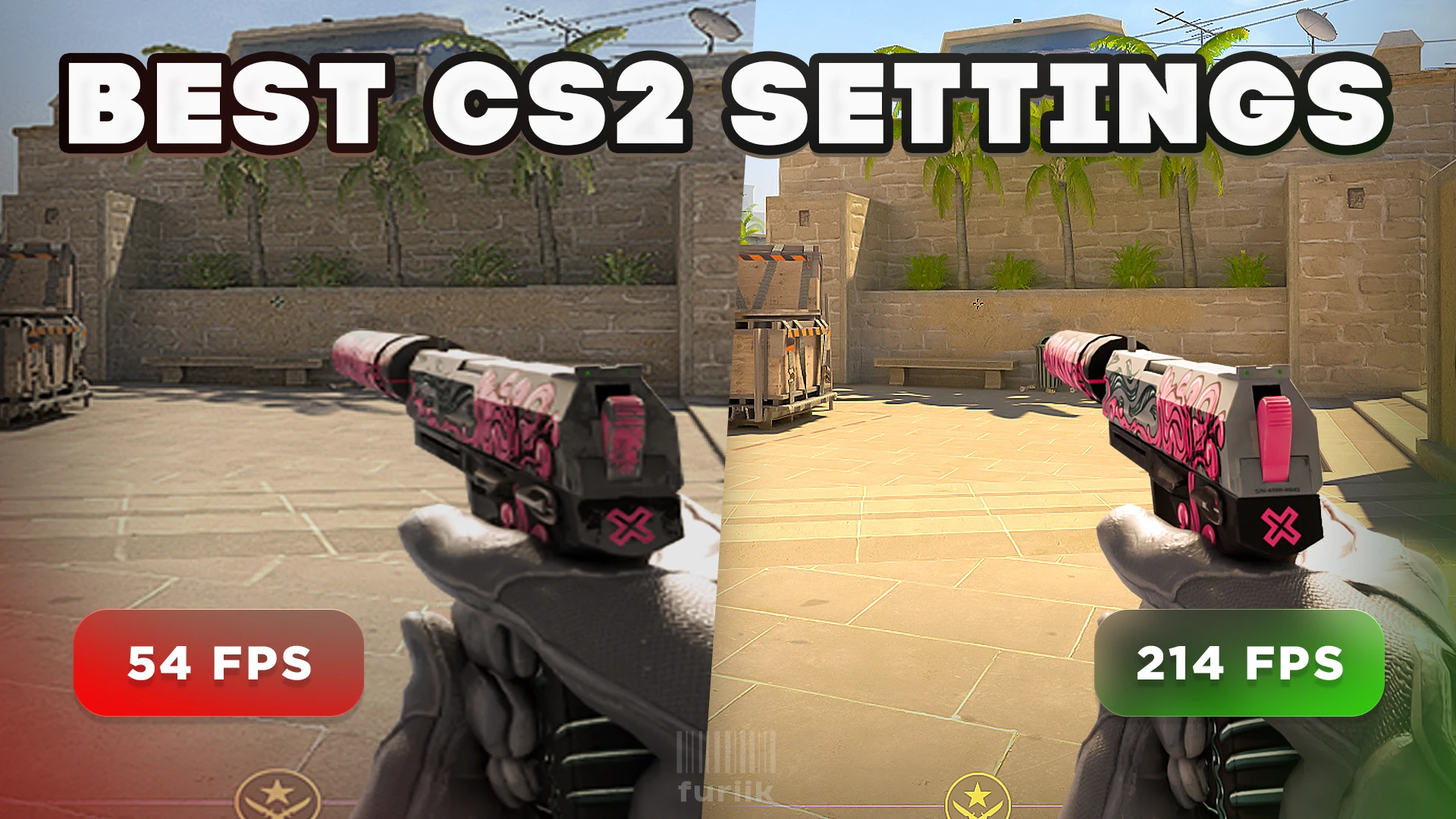
CS2 FPS Boost Guide That Actually Works in 2026
If your CS2 feels laggy, you are getting micro freezes or your FPS is just inconsistent, your settings are wrong. This guide walks you through every fix step by step – from Windows optimizations to NVIDIA settings and CS2 launch options – you can have it all done in under 5 minutes. These are the same settings that make a real difference.
Disable Fullscreen Optimizations
There are two ways to disable fullscreen optimizations.
Method 1 – Through Steam:
- Open Steam and go to your Library
- Click on CS2 and open Settings
- Go to Installed Files and click Browse
- Double click on game → bin → win64
- Right click on CS2 → Properties → Compatibility
- Check “Disable fullscreen optimizations” and click Apply


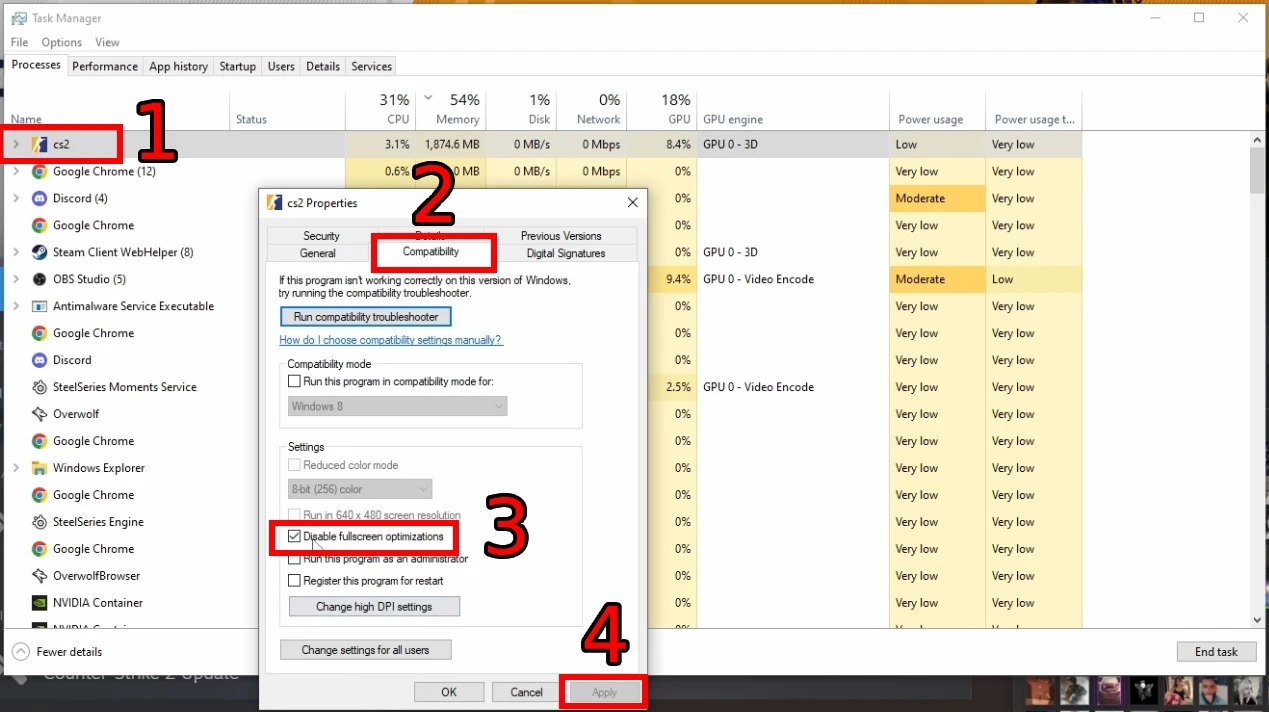
Method 2 – Through Task Manager:
- First of all, make sure your CS2 game is opened
- Open Task Manager with Ctrl + Shift + Escape
- Find CS2 in the list → Right click on it → Properties → Compatibility
- Check “Disable fullscreen optimizations” and click Apply
Optimize Windows Settings
1. Press the Windows button and go to Settings → Click on Gaming
2. Game Bar: Disable it completely.
3. Game Mode: Make sure it is enabled.
Graphics Settings:
- Make sure GPU scheduling is turned off
- Click Browse and add CS2 as an application
- To find the CS2 file path: Steam → Properties → Installed Files → Browse → copy the folder path
- Navigate to game → bin → win64 → CS2.exe and add it
- Click Options and select High Performance → Save


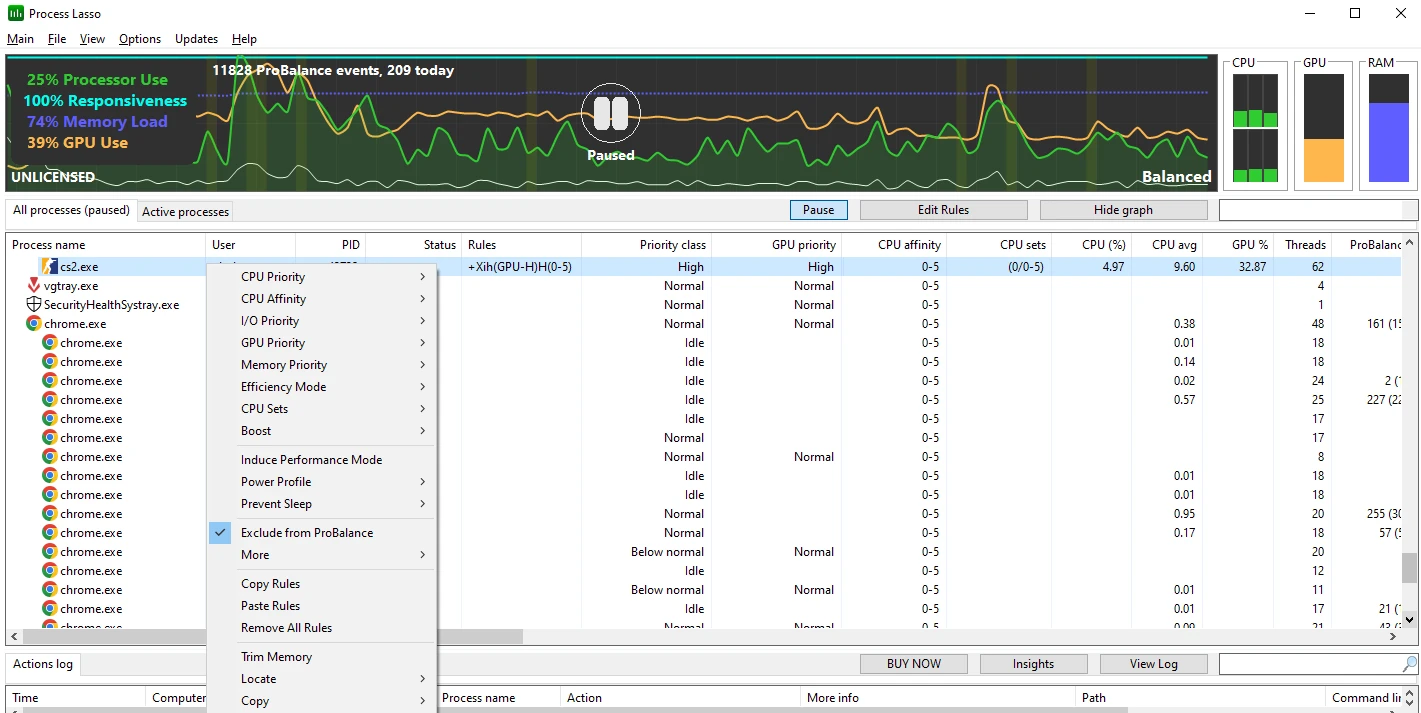
Boost CPU and GPU Power with Process Lasso
Process Lasso is a free program that lets you prioritize CS2 above other processes so your CPU and GPU give it maximum power.
- Google “Process Lasso” and download it from the first result
- Install and open it while CS2 is running
- Find CS2 in the list
- Right click on CS2 and set the following:
- CPU Priority → Always → High
- CPU Affinity → Always → Disable SMT
- I/O Priority → Always → High
- GPU Priority → Always → High
- Efficiency Mode → Always → On
- Memory Priority → Always → Normal
- CPU Sets → Always → Check all
- Boost → Always on
- Power Profile → High Performance
That’s it. You can close it, but make sure it’s always running.
Optimize In-Game Video Settings
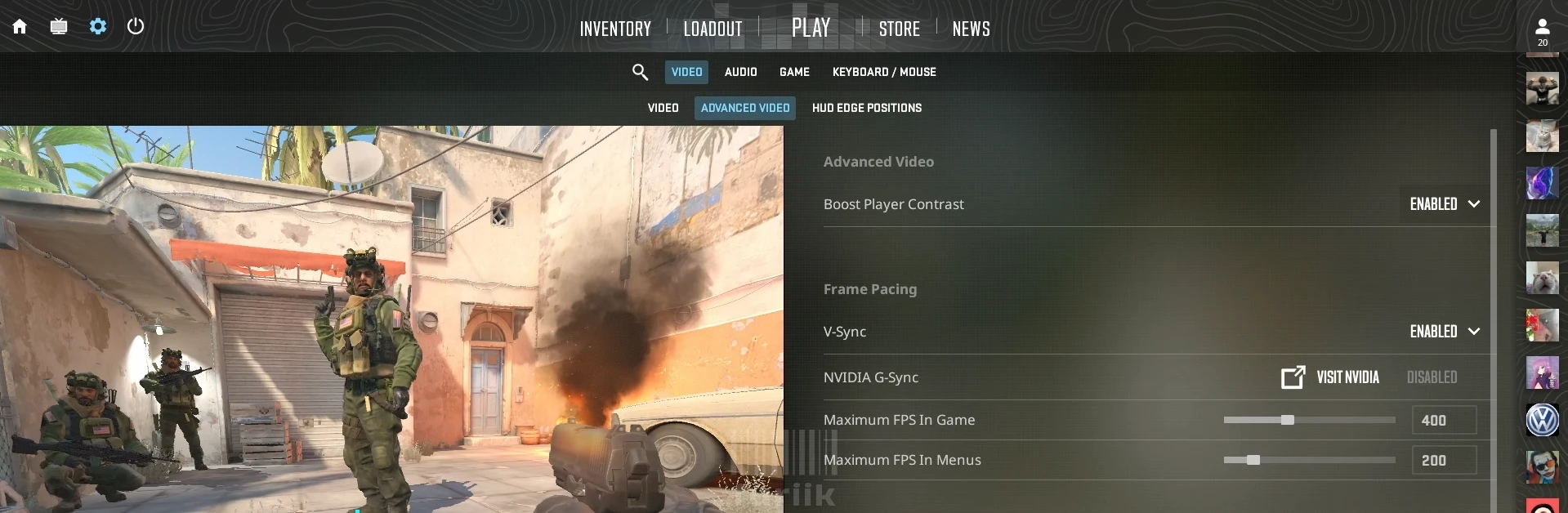
These are the recommended CS2 video settings for maximum FPS:
- Resolution: Your choice – 16:9 fullscreen or stretched
- Boost Player Contrast: Enabled
- VSync: Try enabled first, disable if still laggy
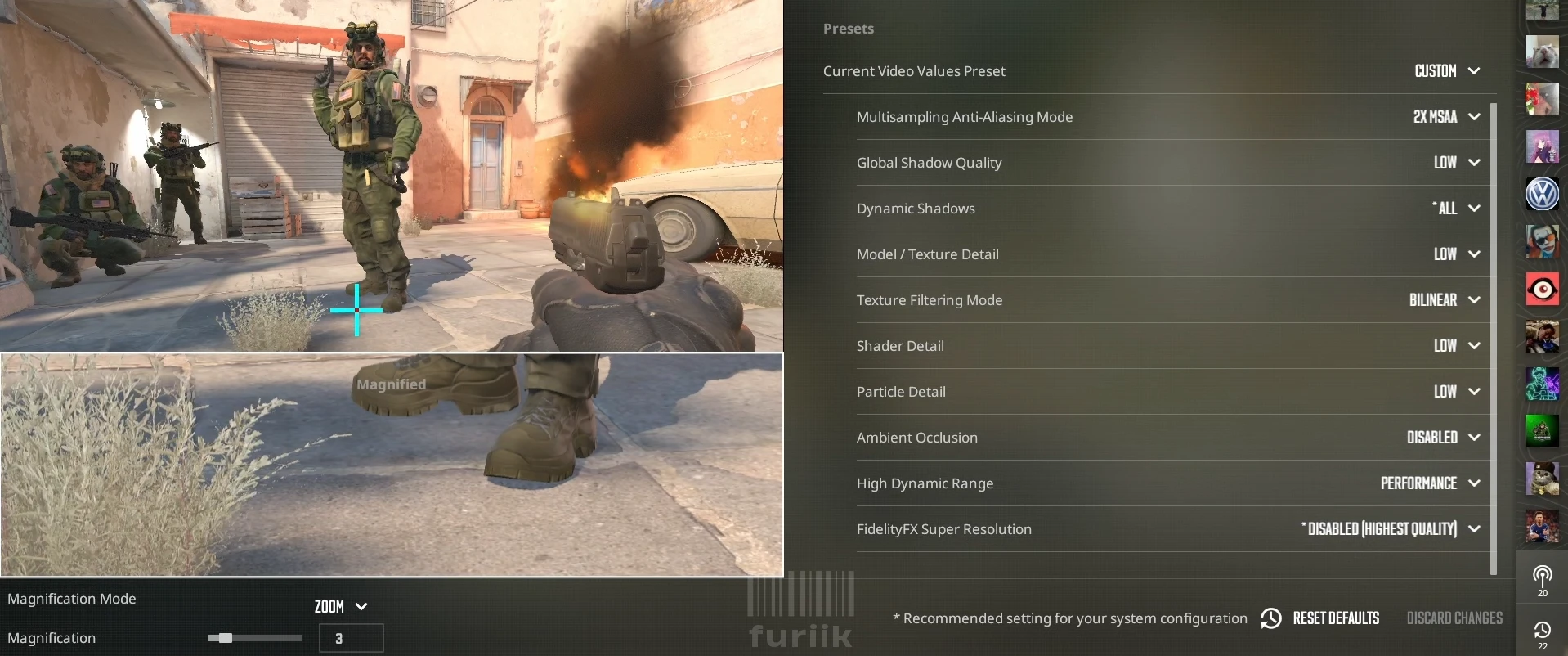
- Anti-Aliasing Mode: 2x
- Global Shadow Quality: Low
- Dynamic Shadows: All
- Model Texture Detail: Low
- Texture Filtering Mode: Blinear
- Shader Detail: Low
- Particle Detail: Low
- Ambient Occlusion: Disabled
- High Dynamic Range: Performance
- FidelityFX: Disabled
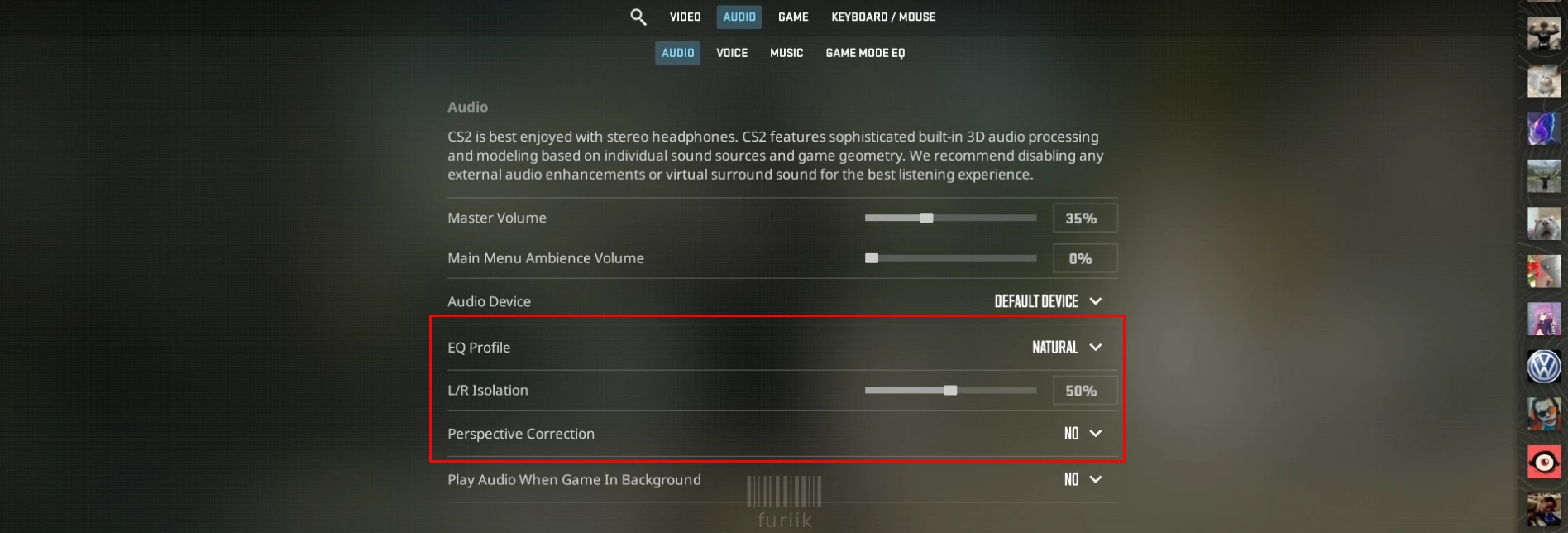
For audio settings:
- EQ Profile: Natural
- L/R Isolation: 50%
- Perspective Correction: No
Optimize Nvidia Control Panel
- Open NVIDIA Control Panel
- Go to Change Resolution and make sure you have your highest refresh rate selected
- Go to Manage 3D Settings → Program Settings → select CS2
- Set the following:
- Low Latency Mode: Ultra
- Max Frame Rate: Set 4 below your monitor refresh rate (144Hz monitor = 140 FPS, 240Hz monitor = 236 FPS, 60Hz monitor = 56 FPS)
- Texture Filtering Quality: High Performance
- Texture Filtering Trilinear Optimization: On
- Click Apply


Set CS2 Launch Options
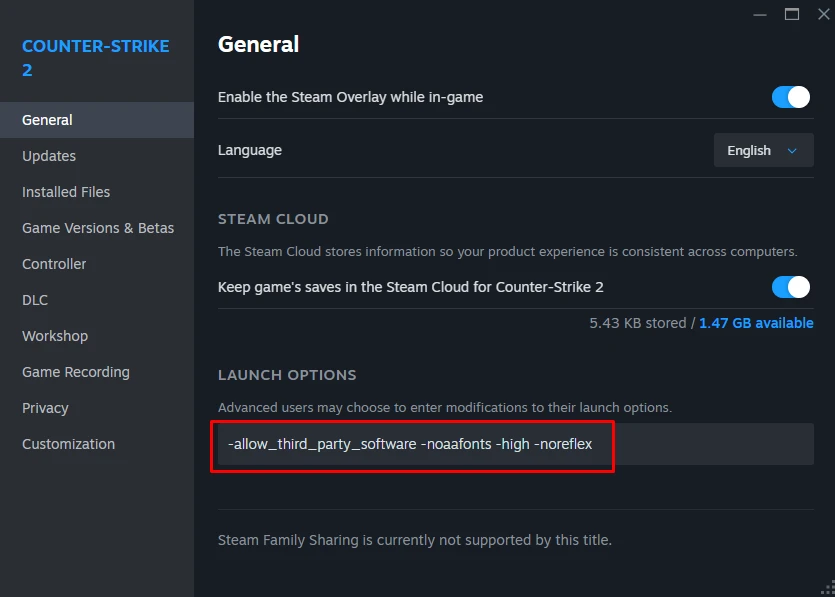
- Open Steam and go to your Library
- Click on CS2, open Settings and click on Properties
- General → Launch Options and paste the following: –allow_third_party_software -noaafonts -high -noreflex
What each command does:
- allow_third_party_software – allow third-party applications (like OBS, Discord overlay, or NVIDIA Freestyle) to interact with Counter-Strike 2
- noaafonts – reduces GPU load by disabling anti-aliasing on in-game fonts, used as a performance booster.
- high – sets the CS2 process to high priority, giving it CPU preference. Most useful on lower-end PCs.
- noreflex – increases FPS. Make sure your Nvidia settings are also configured as shown above for this to work properly.
Bonus: Fix Keyboard Input Lag
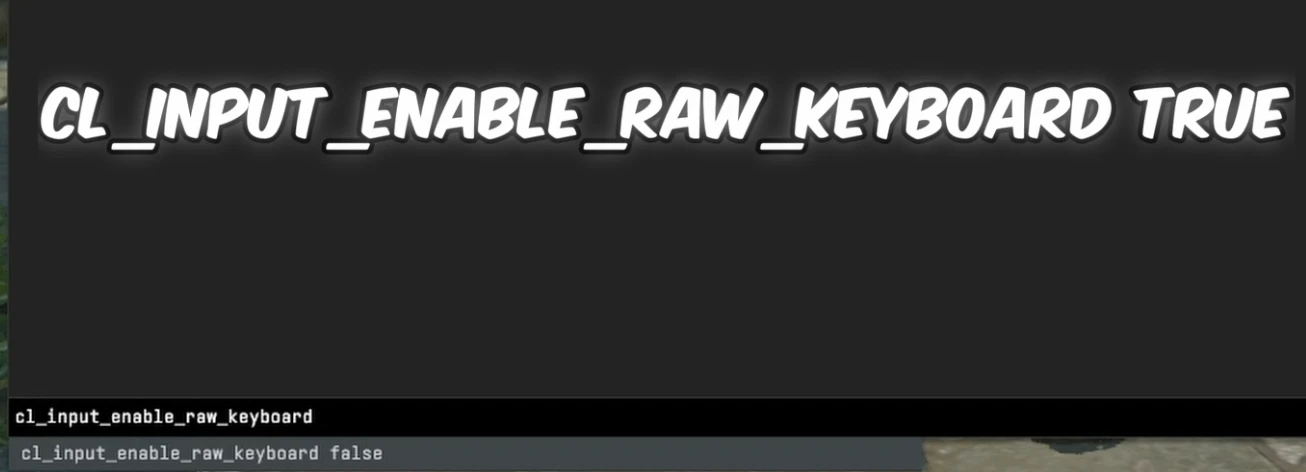
If you feel like your keyboard has a delay in-game, add this command to your CS2 console:
cl_input_enable_raw_keyboard true
This improves keyboard responsiveness and fixes input lag.
Bonus: Best Map for Crosshair and Viewmodel Setup
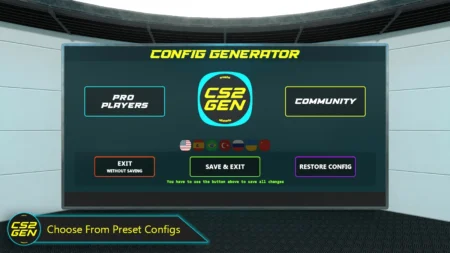
Once your settings are optimized, use the Config Generator ✮ CS2 GEN map by crashz and Misterio to change your crosshair and viewmodel. Download it from the Steam Workshop and launch it in practice mode. Inside you can adjust:
- HUD color and team numbers
- Radar settings
- Crosshair style and size
- Viewmodel position
- Pro player configs to try their exact settings
When you are happy with everything, shoot the save button and exit.
FAQ Section
The most common cause is incorrect Windows and Nvidia settings rather than hardware limitations. Fullscreen optimizations, Game Bar and incorrect power settings can all cause lag and micro freezes even on high-end PCs. Follow the steps in this guide to fix them.
Try enabled first. For many players VSync reduces screen tearing and actually feels smoother. If you still experience lag or input delay after enabling it, then disable it and test again.
The three most effective launch options are -noaafonts, -high and -noreflex. These reduce GPU load, prioritize the game process and boost FPS respectively.
Yes – Process Lasso forces Windows to give CS2 maximum CPU and GPU priority, which reduces background interference and can noticeably improve frame consistency especially during intensive fights.
Set Low Latency Mode to Ultra, cap your frame rate to 4 below your monitor refresh rate, and set Texture Filtering Quality to High Performance. These three changes alone can significantly improve your CS2 performance.
Conclusion
These settings cover every layer of CS2 performance – Windows, GPU, CPU, in-game and launch options. Apply them all and you should see a noticeable improvement in FPS and smoothness. Drop your before and after FPS in the comments – we want to see the difference it made on your PC.
For more CS2 guides visit CS2 on Steam and stay tuned to furiik for more tips.